Studio
Studio, the krantho admin
The admin your app serves at /admin: edit on the page itself, or in a form made from your schema, and see what search engines and social cards will read before you publish.
Studio is the admin that comes with krantho. Your app serves it at /admin, the same on Next.js, SvelteKit and Express, so editors have one place to work whatever the site is built with. The screenshots on this page are from the Next.js example in the krantho repository.
Pulse#
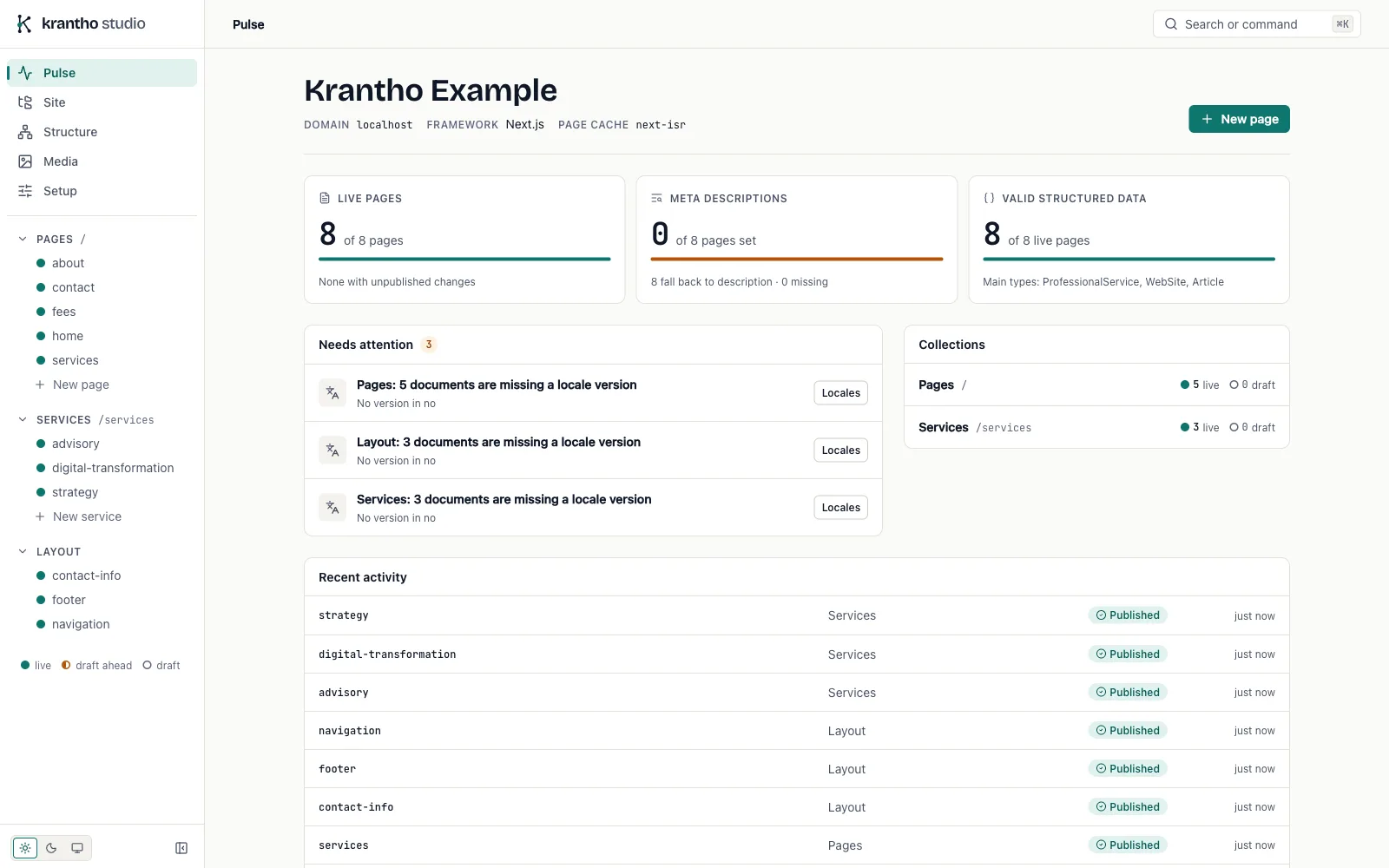
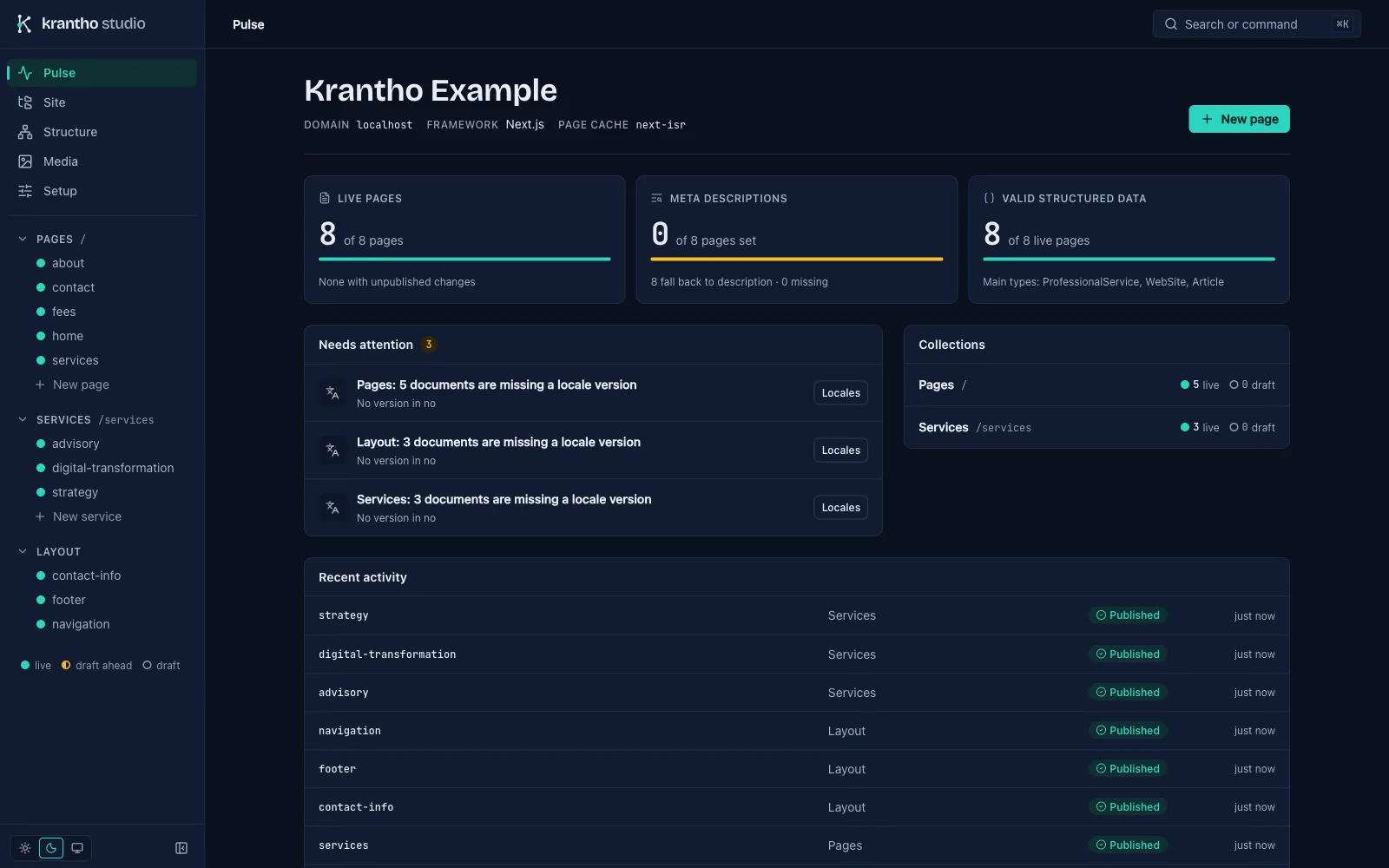
Pulse is where Studio opens. It shows how many pages are live, how many have a meta description of their own and how many carry valid structured data, then lists what needs attention, such as pages missing a version in one of the site's locales, and the most recent changes.
Site#
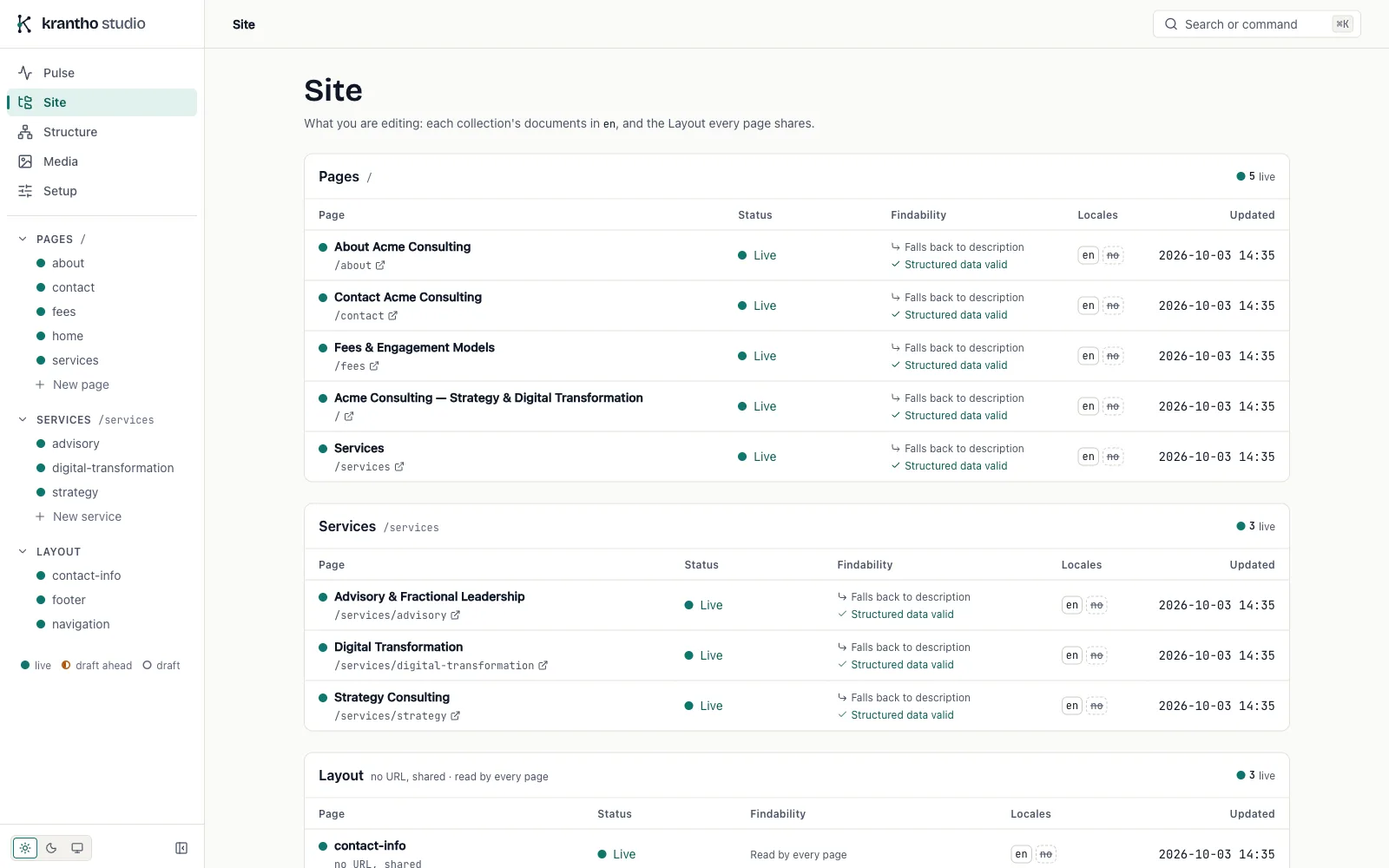
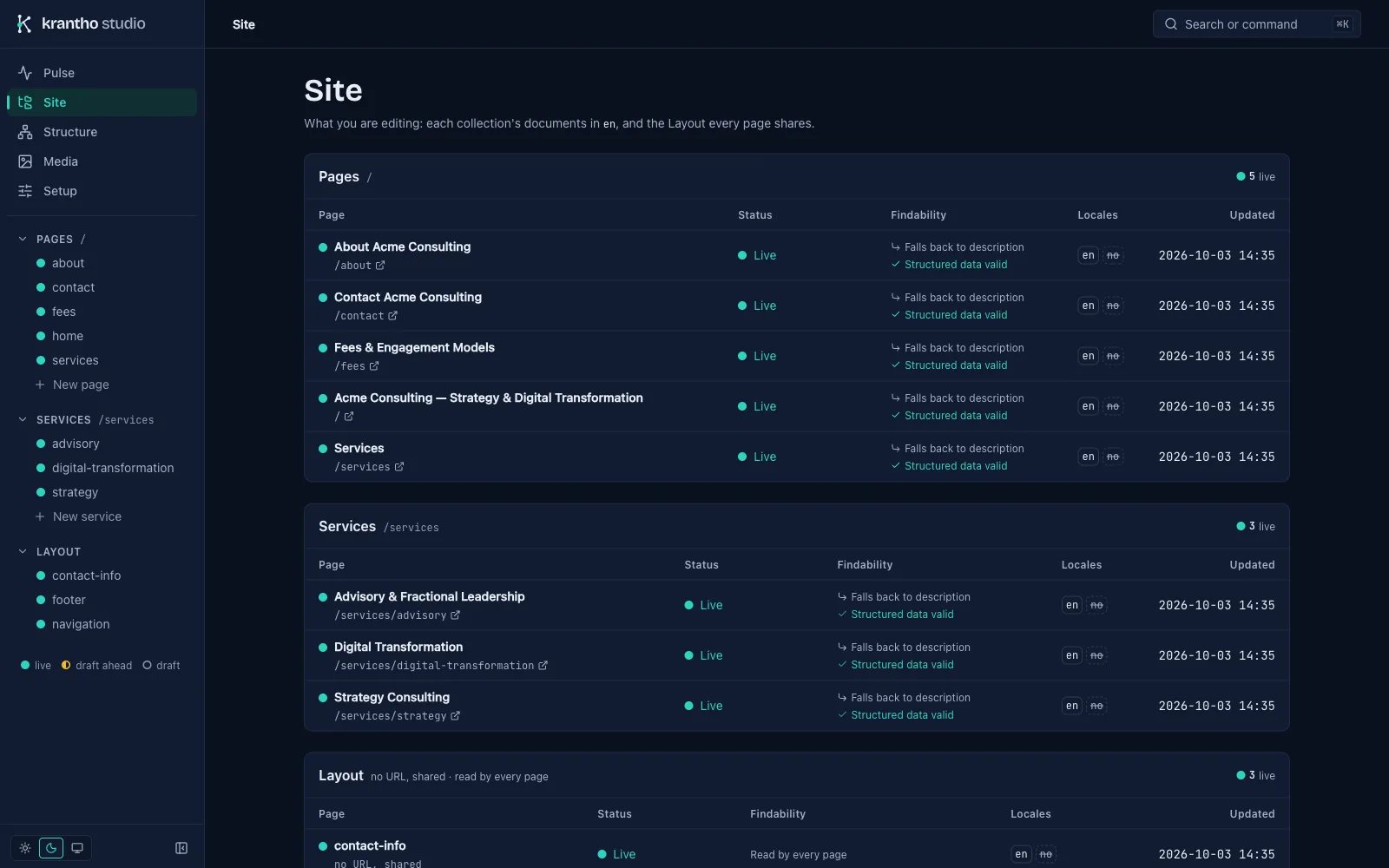
The Site view lists every page of every collection: whether it is live or has changes waiting, whether search engines will find a description, whether its structured data is valid, and which locales it exists in. The tree on the left holds the same pages, and the layout content every page shares.
Live mode#
Live mode opens the page as your site renders it, with your own layout and components. Point at a field or a section to see what it is, and click it to edit it there. A text field such as the title becomes editable in the page itself; a section opens its markdown in an editor as wide as the section. The side panel shows the field's rules and limits as you type, and Save draft shows the site's real rendering of the draft.
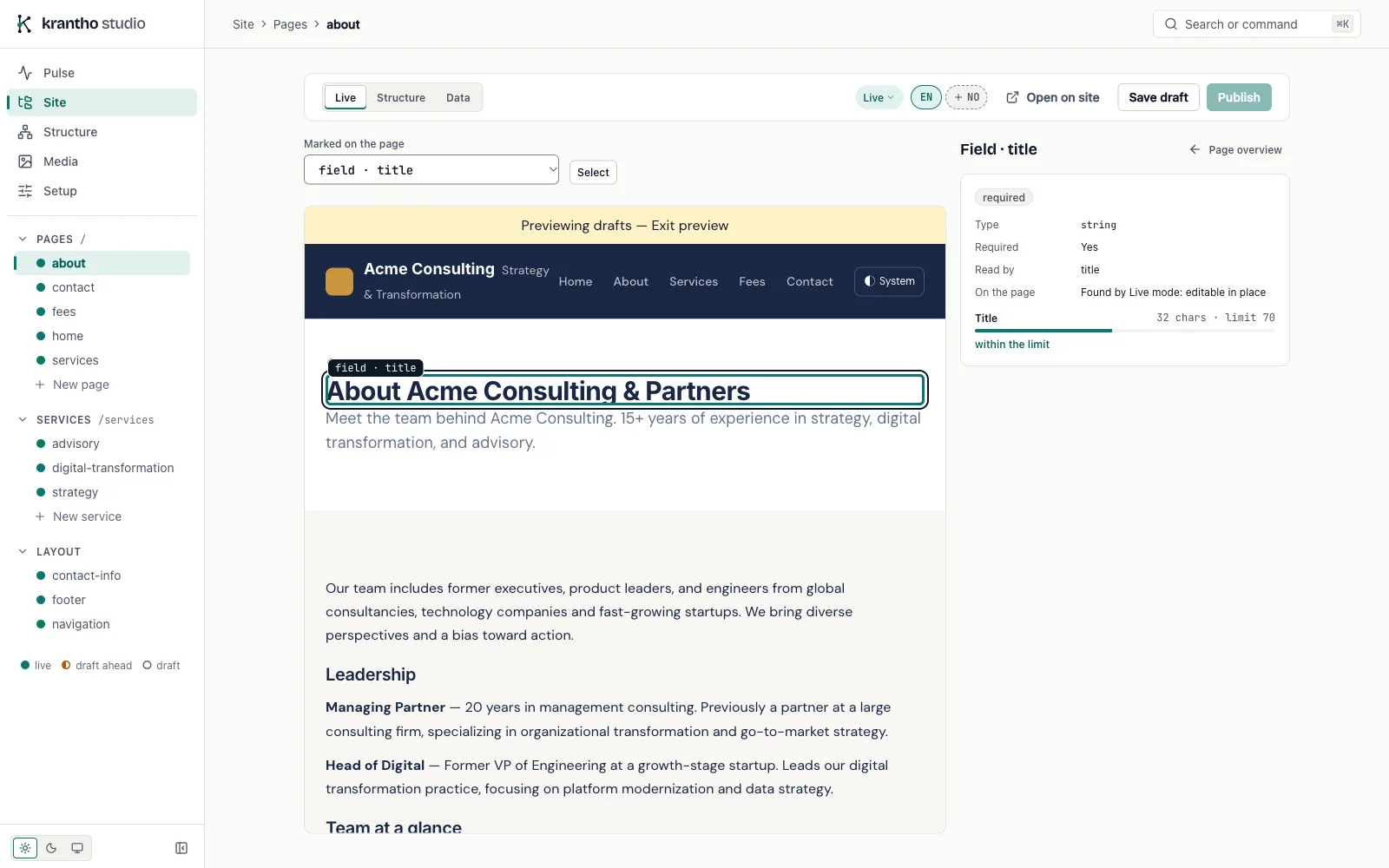
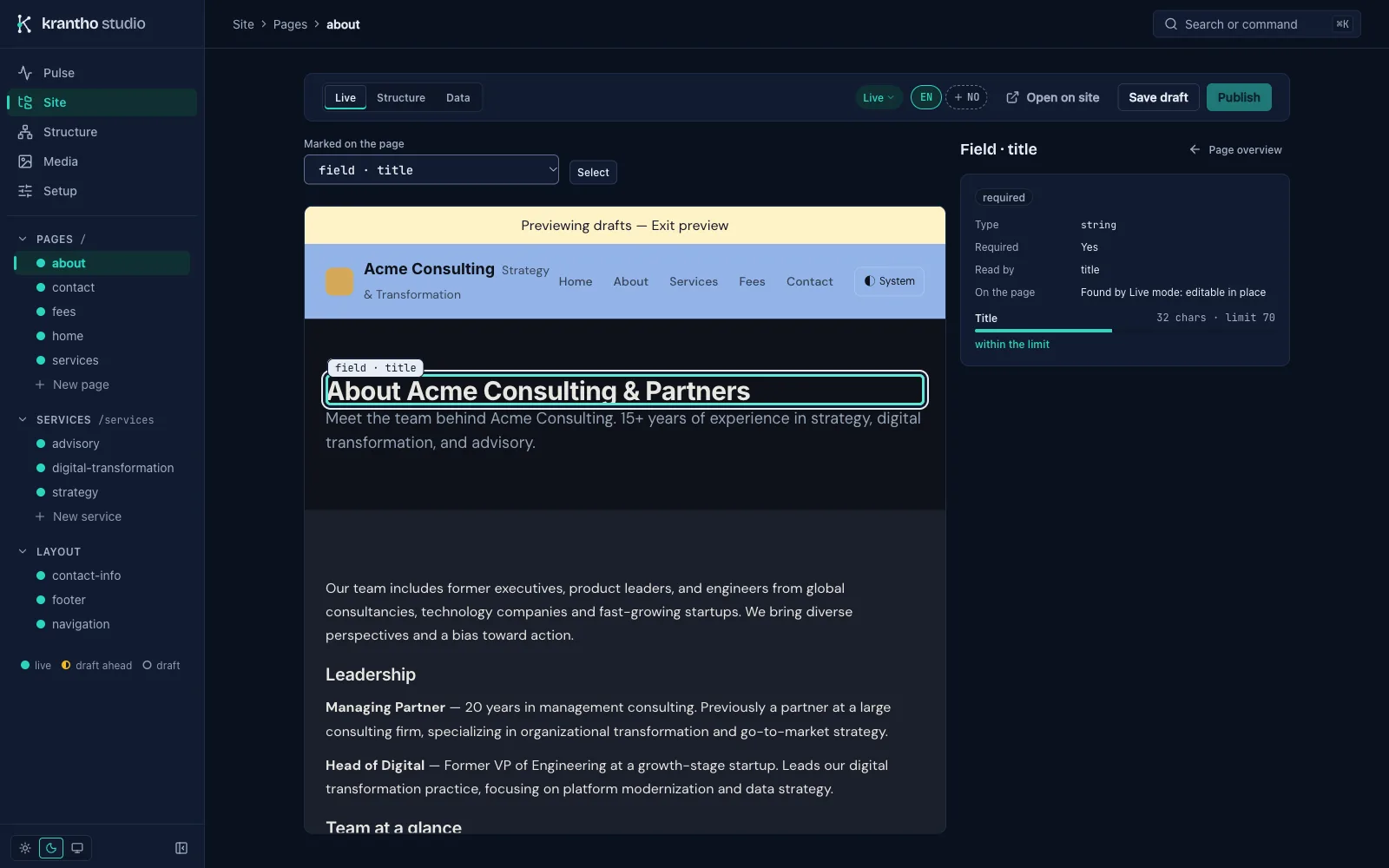
Your page templates mark what they render, so Studio knows which element is which field. Live editing explains the marks.
Structure mode#
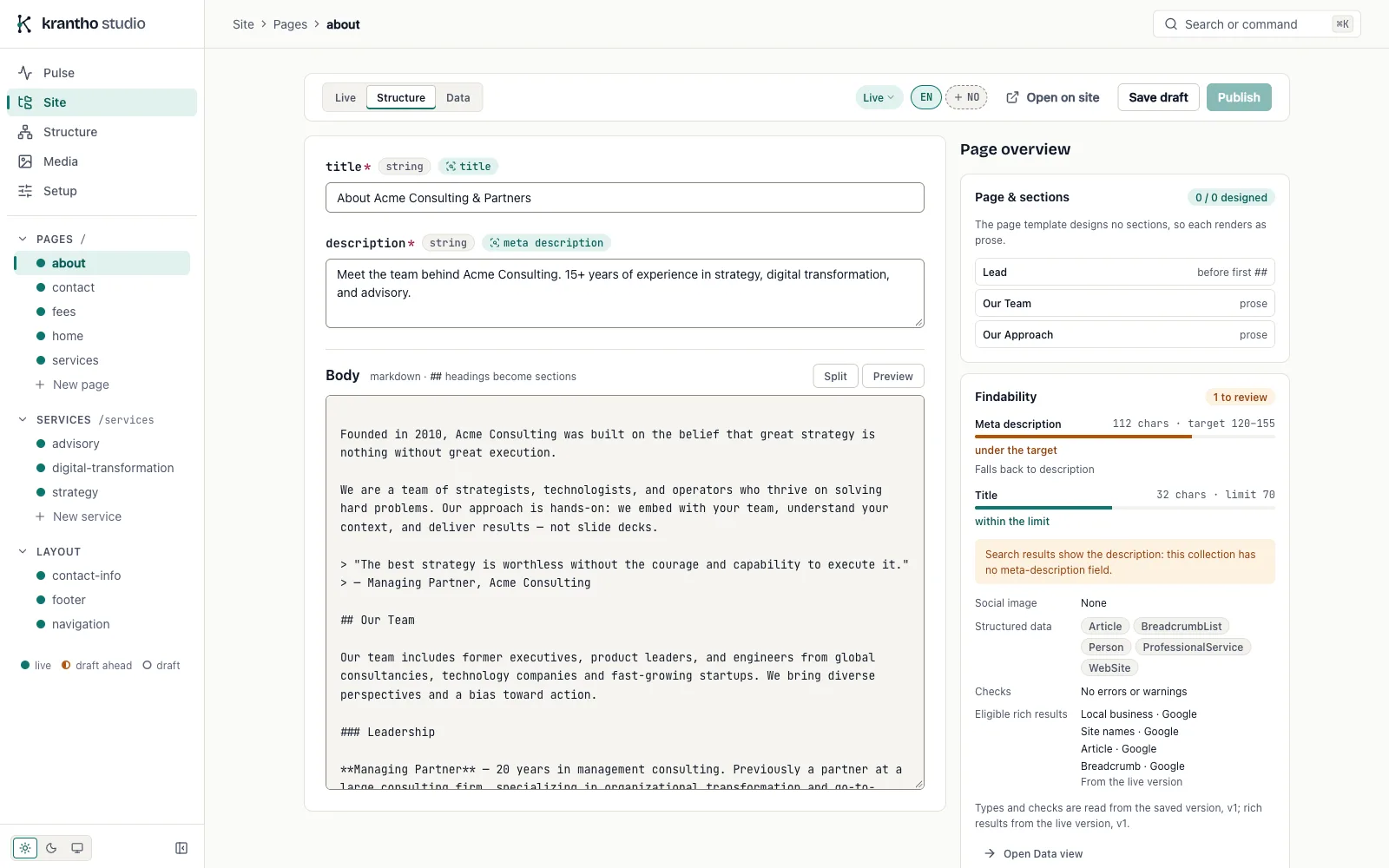
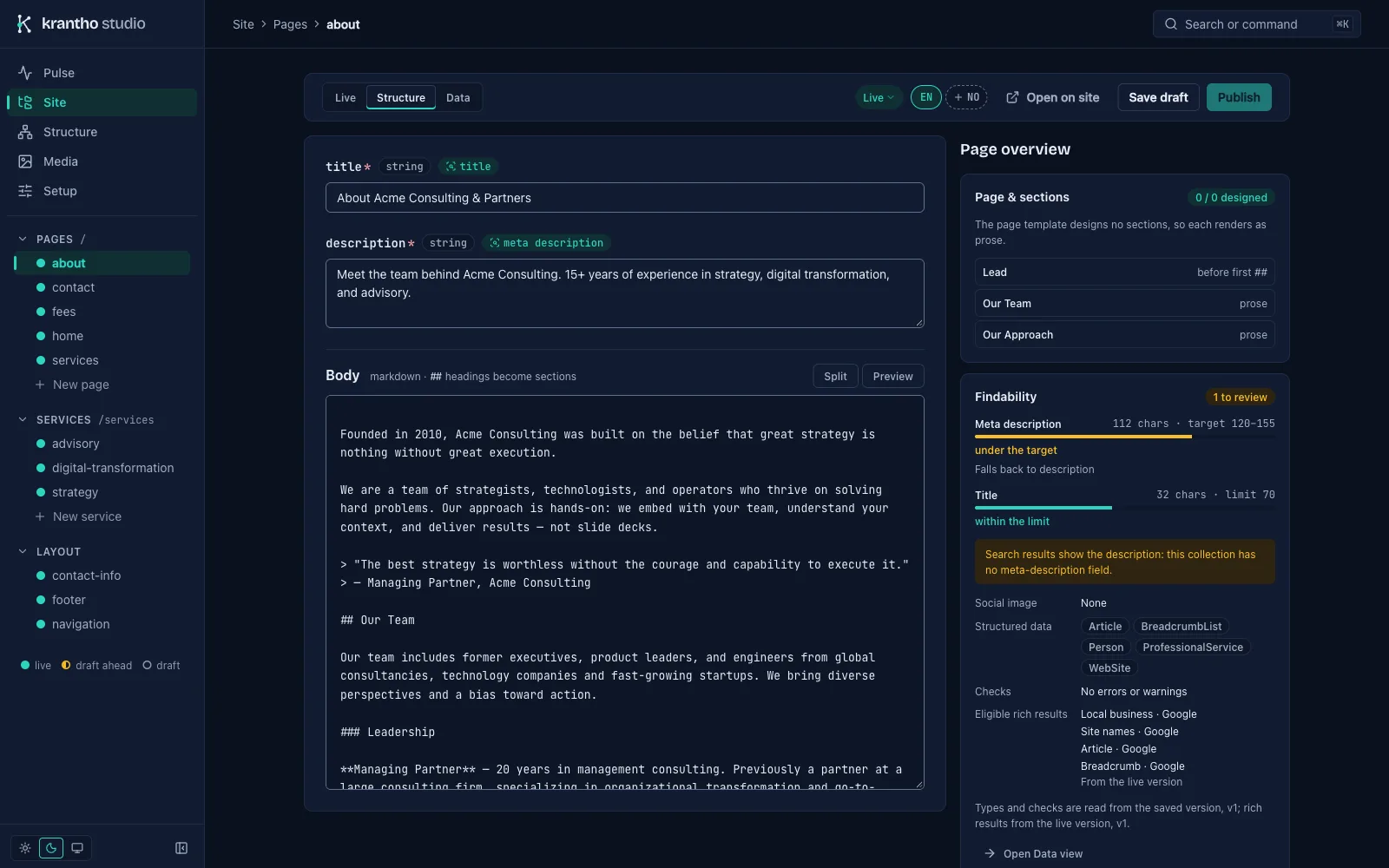
Structure mode is the same document as a form, made from the collection's schema: each field with its type, the required ones marked, and the markdown body, whose ## headings become sections. Beside it, the page's sections and its findability: the title and meta description against the site's limits, the structured data types, and the rich results the live page is eligible for.
Data mode#
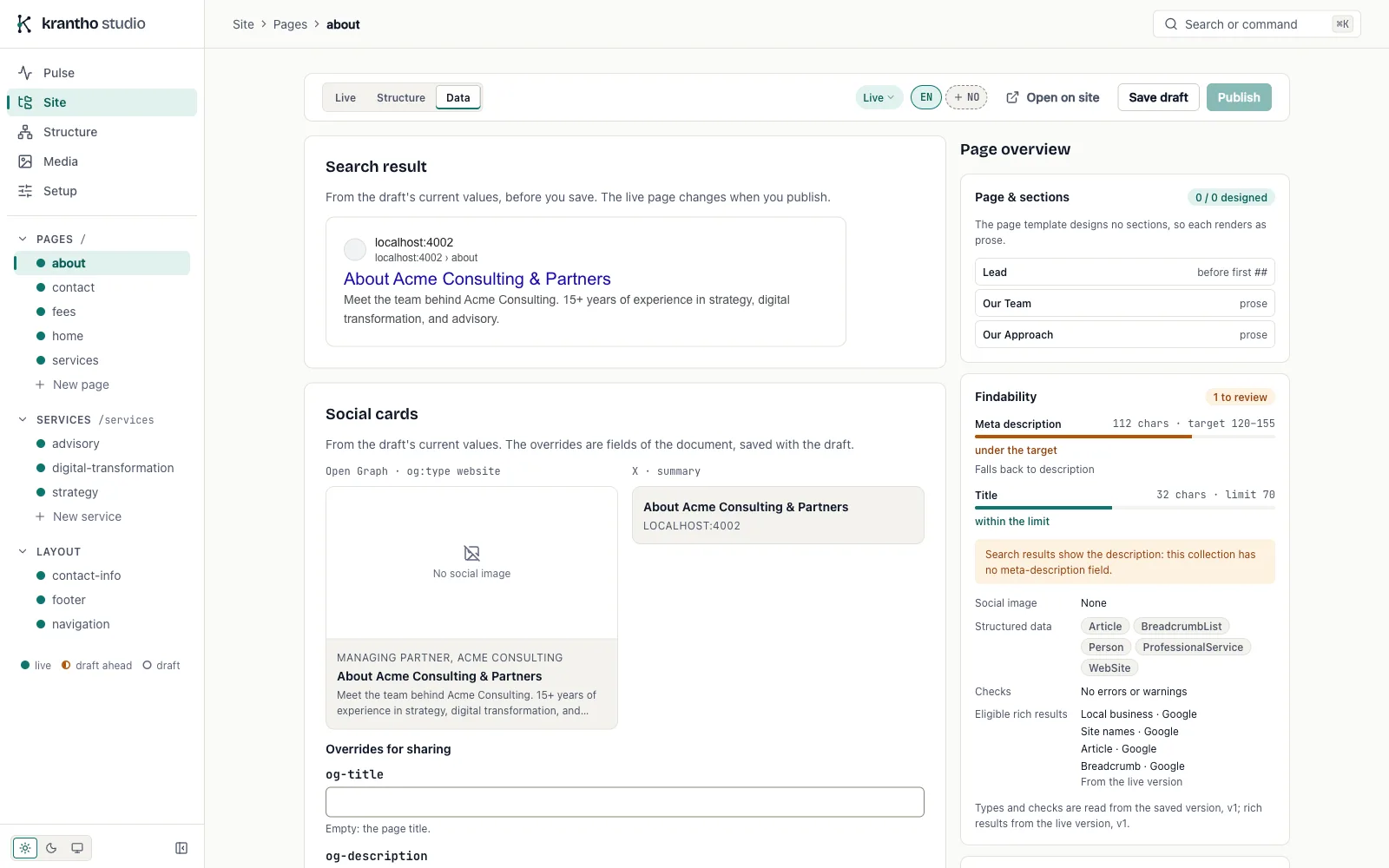
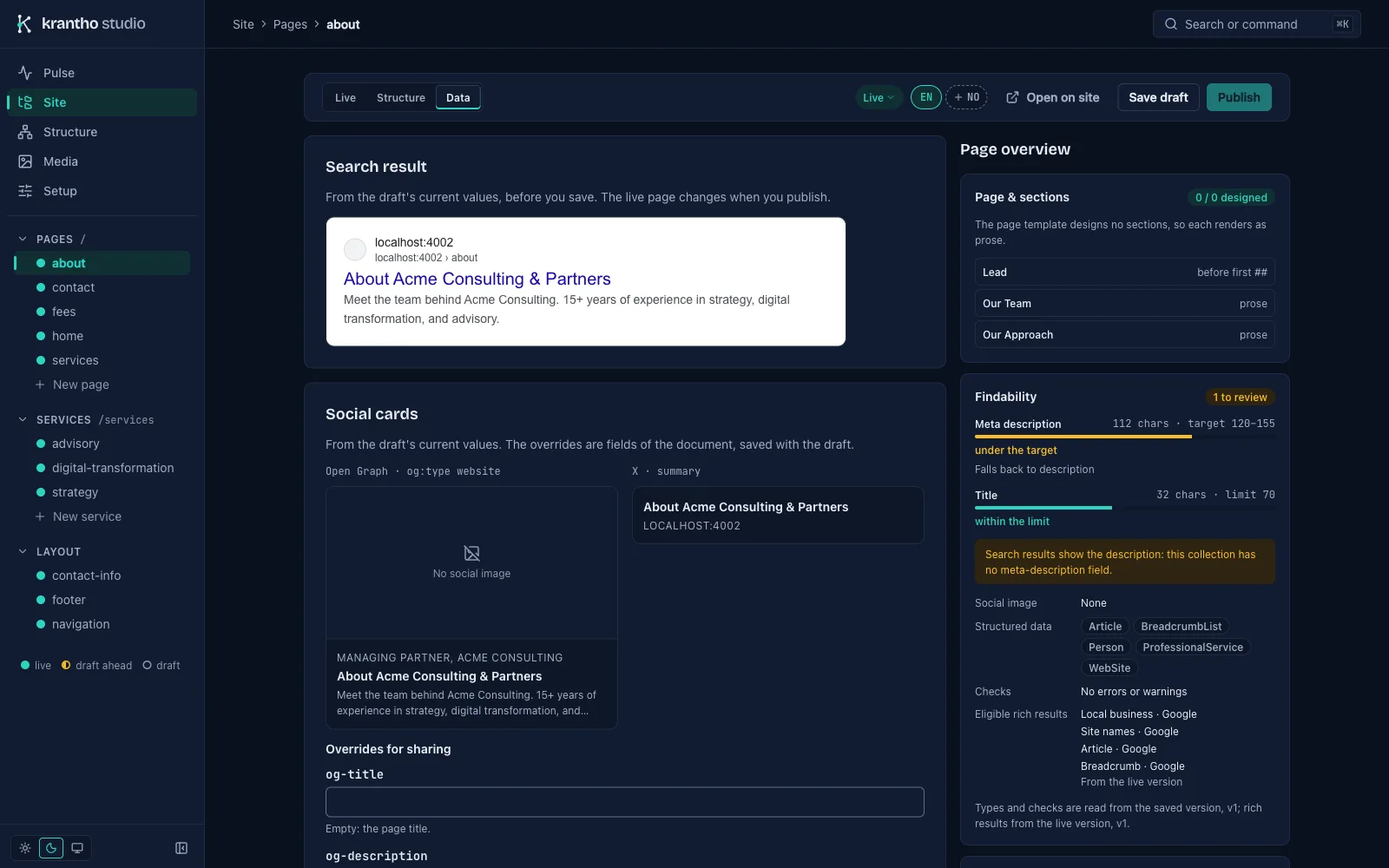
Data mode shows what the page sends to search engines and social networks, from the values in the draft: the search result, the Open Graph and X cards, the indexing settings, and the page's checks. It also shows the page's JSON-LD graph, with where each value comes from, its eligible rich results, and its version history with diffs and restore.
Structure#
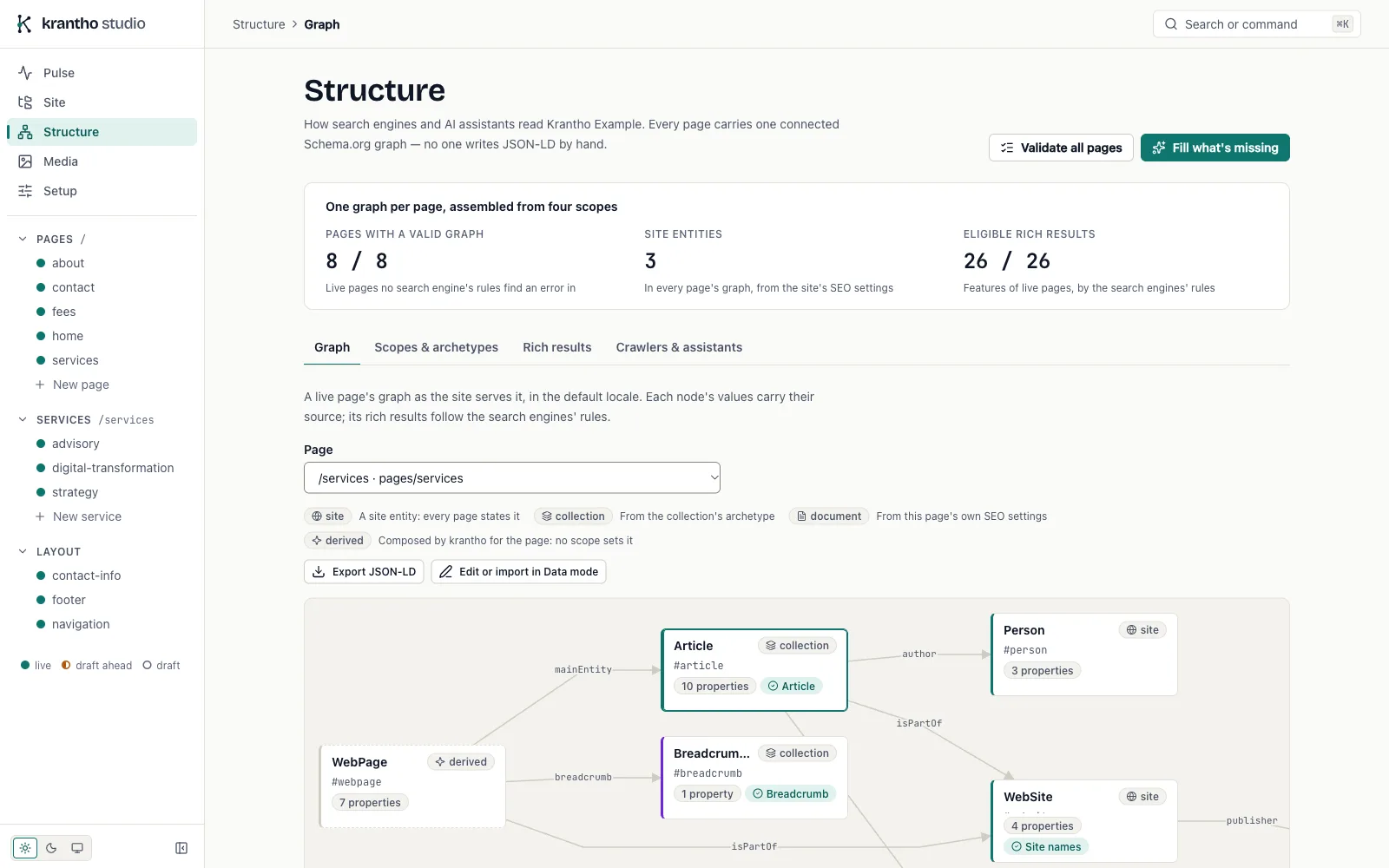
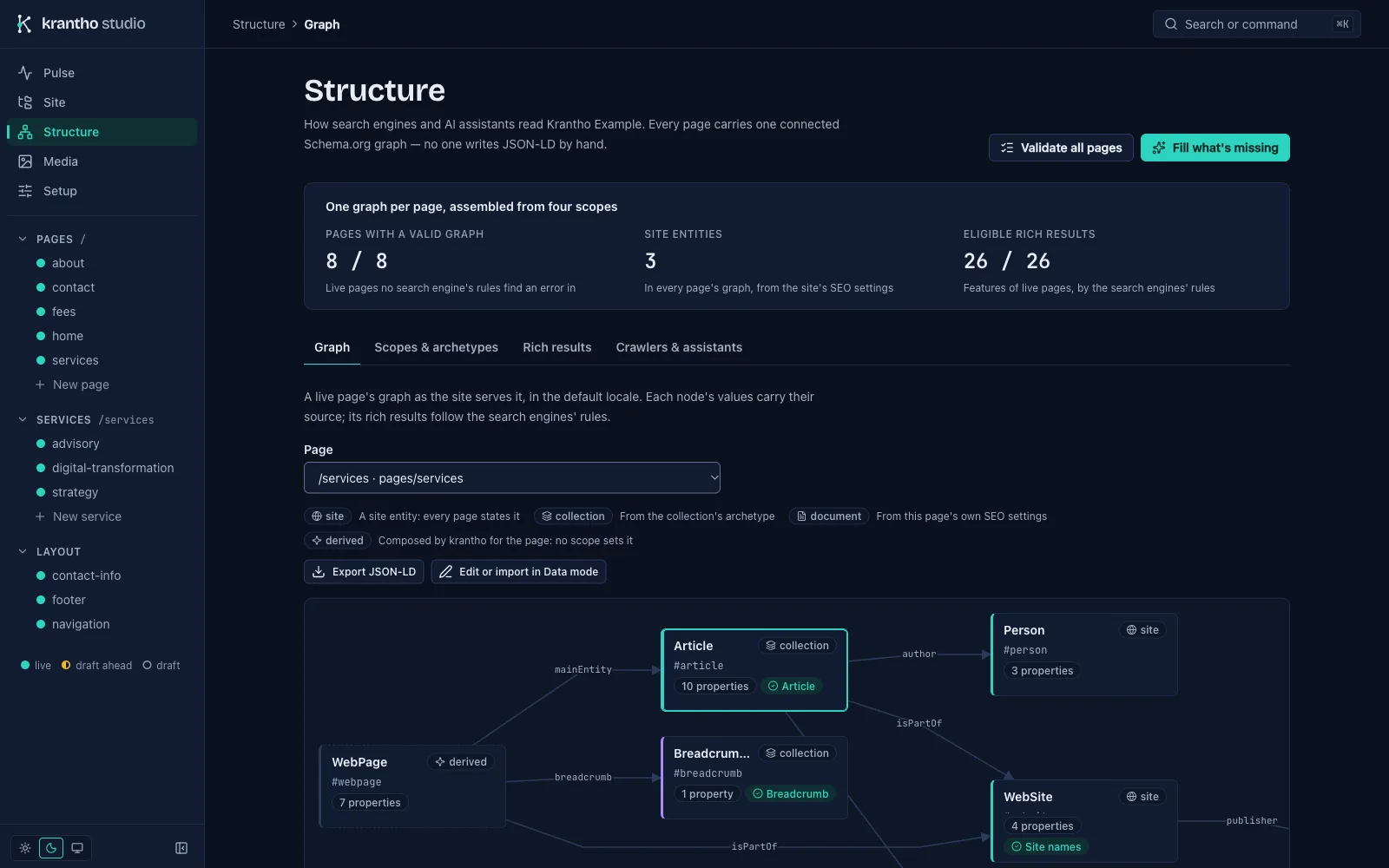
The Structure destination is the site's structured data as a whole. Every page carries one connected Schema.org graph, assembled from the site's identity, the collection's archetypes, URL patterns and the page's own settings. You can browse each page's graph, validate every page against the search engines' rules, and fill missing values with AI enrichment, which never overwrites what someone wrote.
Assistant#
Turn the assistant on and a chat opens beside any page, on the language model you configure. Ask it to find a page, draft one from a brief, rewrite a title or check a page's structured data. It works through krantho's own API as the person using it, so it can do nothing that person could not do in Studio. What it writes is saved as a draft. Publishing, deleting and replacing text wait for a confirmation that shows the exact change, word by word.
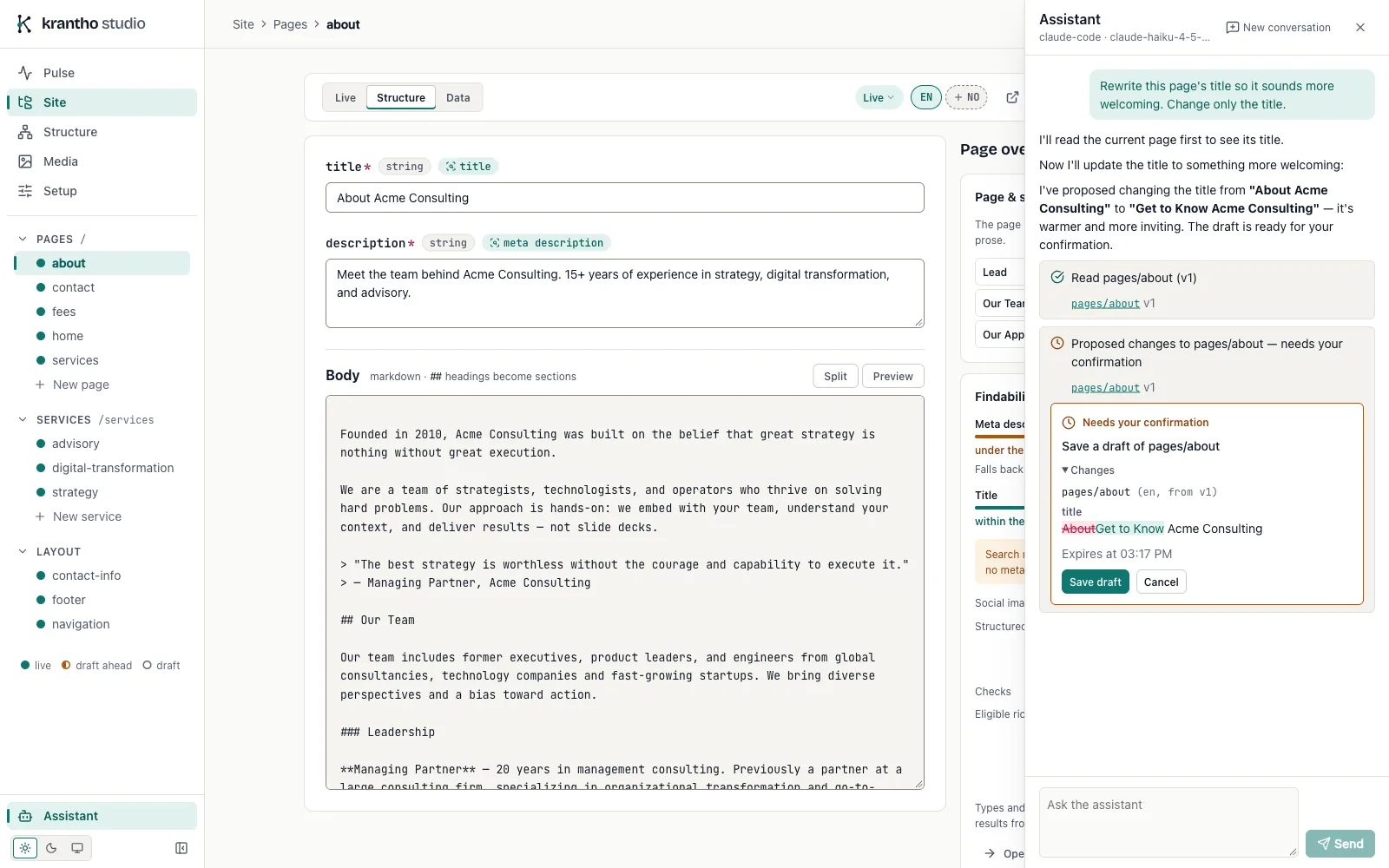
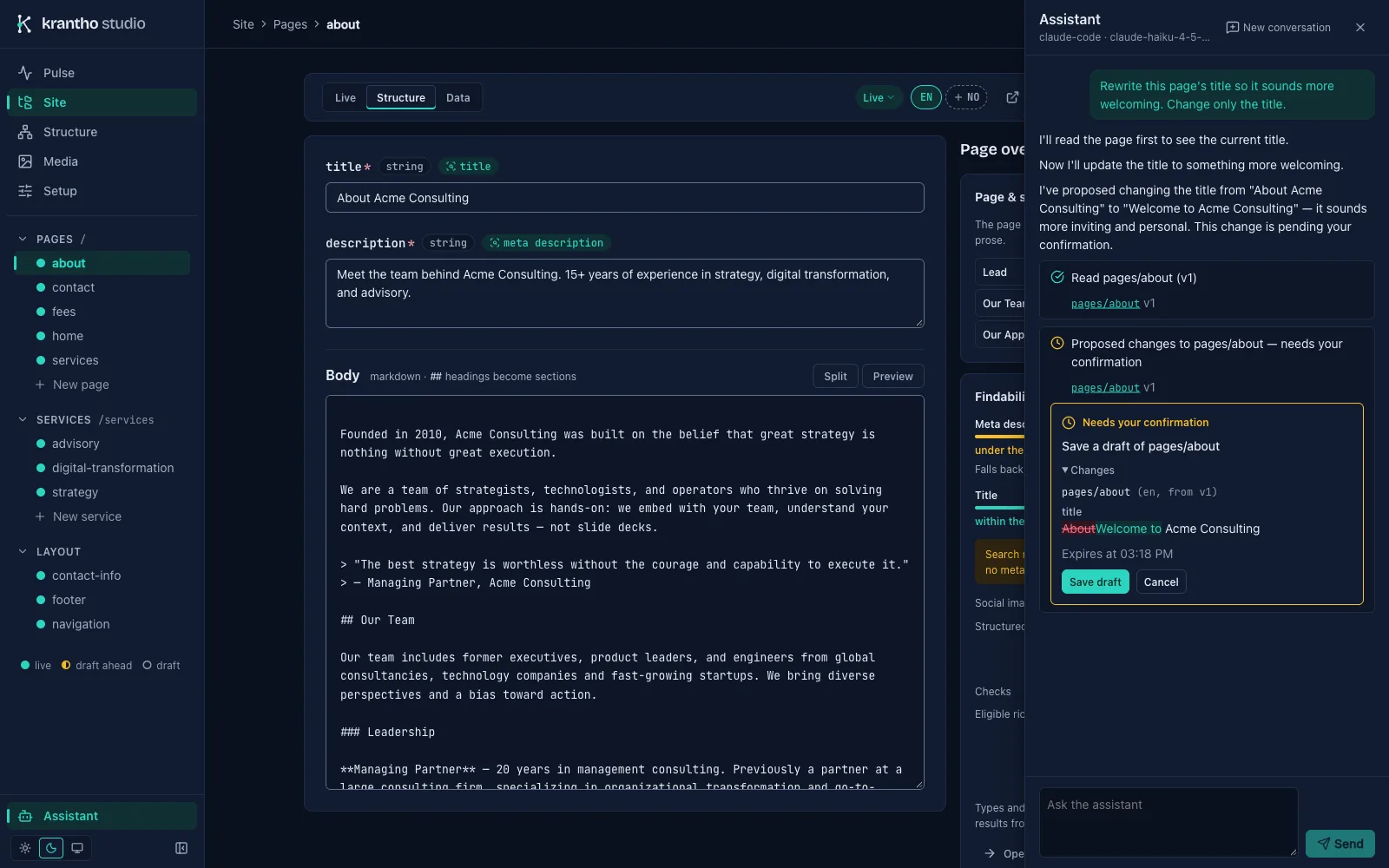
The Studio assistant covers turning it on, who can use it, what it can do and what it sends to the model.
Also in Studio#
- Media: a library with folders, tags, alt text, cropping and a focal point, and a replace that keeps every reference working.
- Setup: collections and the fields added at runtime, locales, the AI provider, webhook deliveries, checkpoints and the people who sign in.
- Search and commands: Ctrl K or ⌘ K finds pages and runs actions from anywhere.
- Roles: admins, editors and viewers each see what their role allows.
- Light and dark, following the system or chosen by the editor.
Read the admin dashboard documentation for every screen in detail.